
Search and Understand with AI tools
Dimensions includes a variety of AI tools to help you search, sort, and summarize your results. Remember that AI models can give incorrect answers; always verify model outputs.
Search with AI
Dimensions Natural Language Query (also known as AI Query Beta) is a feature designed to streamline your workflow by allowing you to run complex searches using plain language. Instead of manually constructing complex Boolean strings or learning specific search syntax, you can simply type what you are looking for, and the system will interpret your intent and automatically apply the correct search logic and filters.
How to Access the Tool
There are two ways to access the Natural Language Query interface:
Click inside the main Dimensions search bar at the top of the page and select "AI Query Beta".
Navigate to the "AI Assistant" icon on the left-hand navigation bar and select "Natural Language Query".
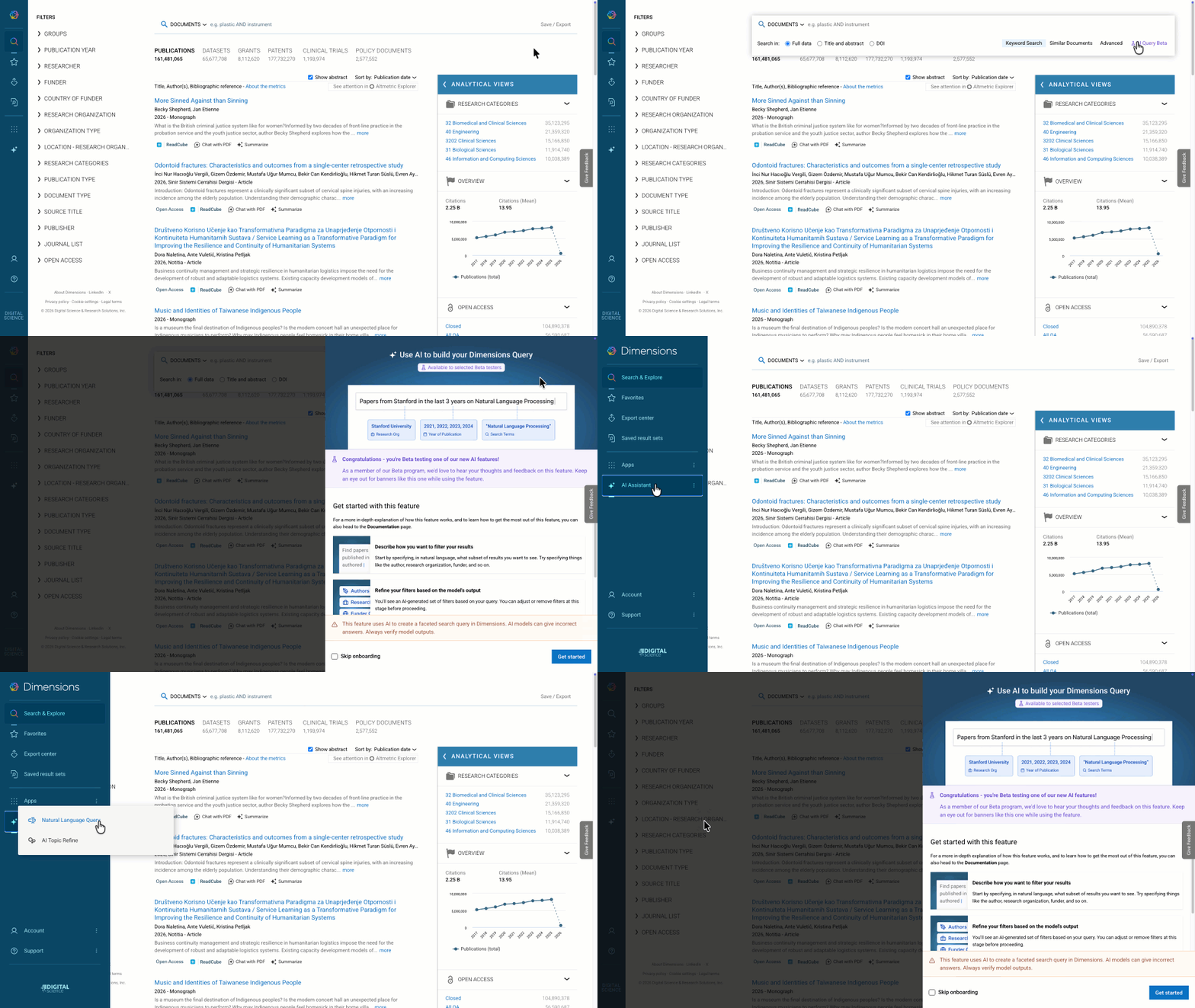
When you first access the tool you will see detailed information for using the tool:
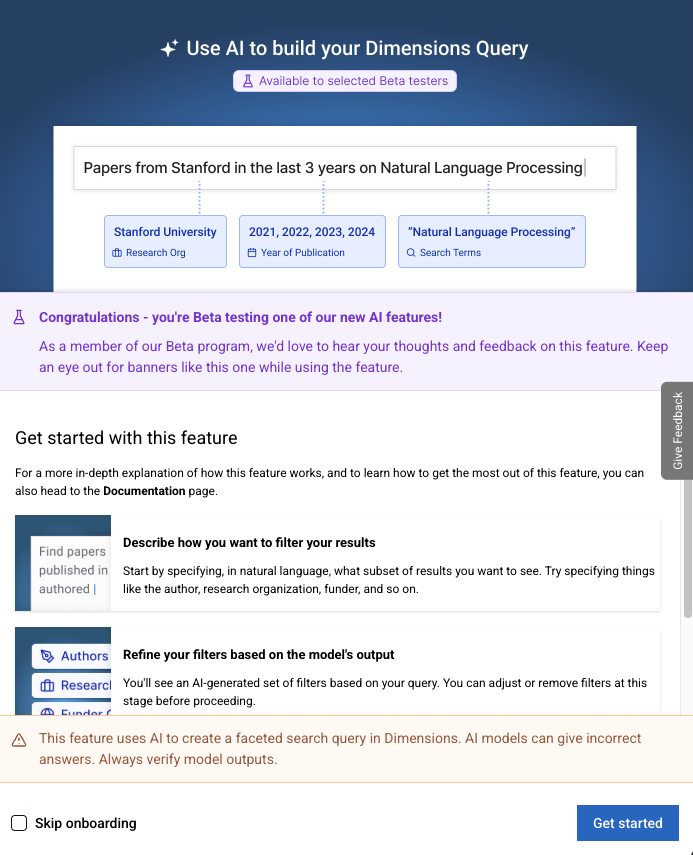
How to Build a Search
Type your search query into the text box using natural, plain English. You can be specific about topics, timeframes, and researcher affiliations.
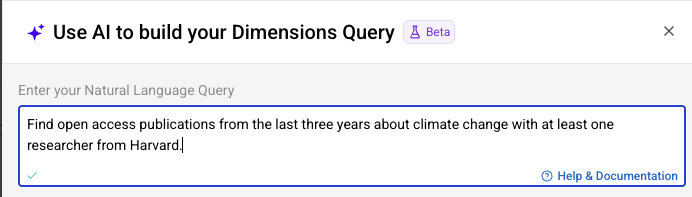
Once you have entered your question, click "Next - Preview Results". Dimensions will translate your natural language into a structured query.
On the preview screen, you will see how the system has interpreted your request. This step puts you in control, allowing you to ensure the AI has understood your intent correctly. You can edit your keywords and modify the filters.
If you are satisfied with the structured query presented, click "Show Results".
Once your results load, you can continue to refine your search using the standard filters on the left, add additional keywords, or use Analytical Views to gain deeper insights into the data.
Best Practices
Be Specific: The more specific your natural language request, the better the AI can structure the filters (e.g., specifying "open access" or specific years).
Review the Preview: Always use the "Preview Results" step to verify that the system has correctly interpreted specific entities, such as university names or technical concepts.
Smart Clustering with AI
Available only in the Publications data source, Smart Clustering leverages cutting-edge AI to group related publications, label each group with a meaningful title, and provide a concise summary of its content. This feature enables you to:
Quickly identify themes and relationships in large result sets.
Drill down into sub-clusters for more detailed exploration.
Return selected publications to Dimensions for further action.
How to Use Smart Clustering
Perform a standard search in Dimensions to generate a list of publications.
Click the “AI Sparkle” button, located in your search results interface, and select “AI Topic Refine” to launch the clustering feature.
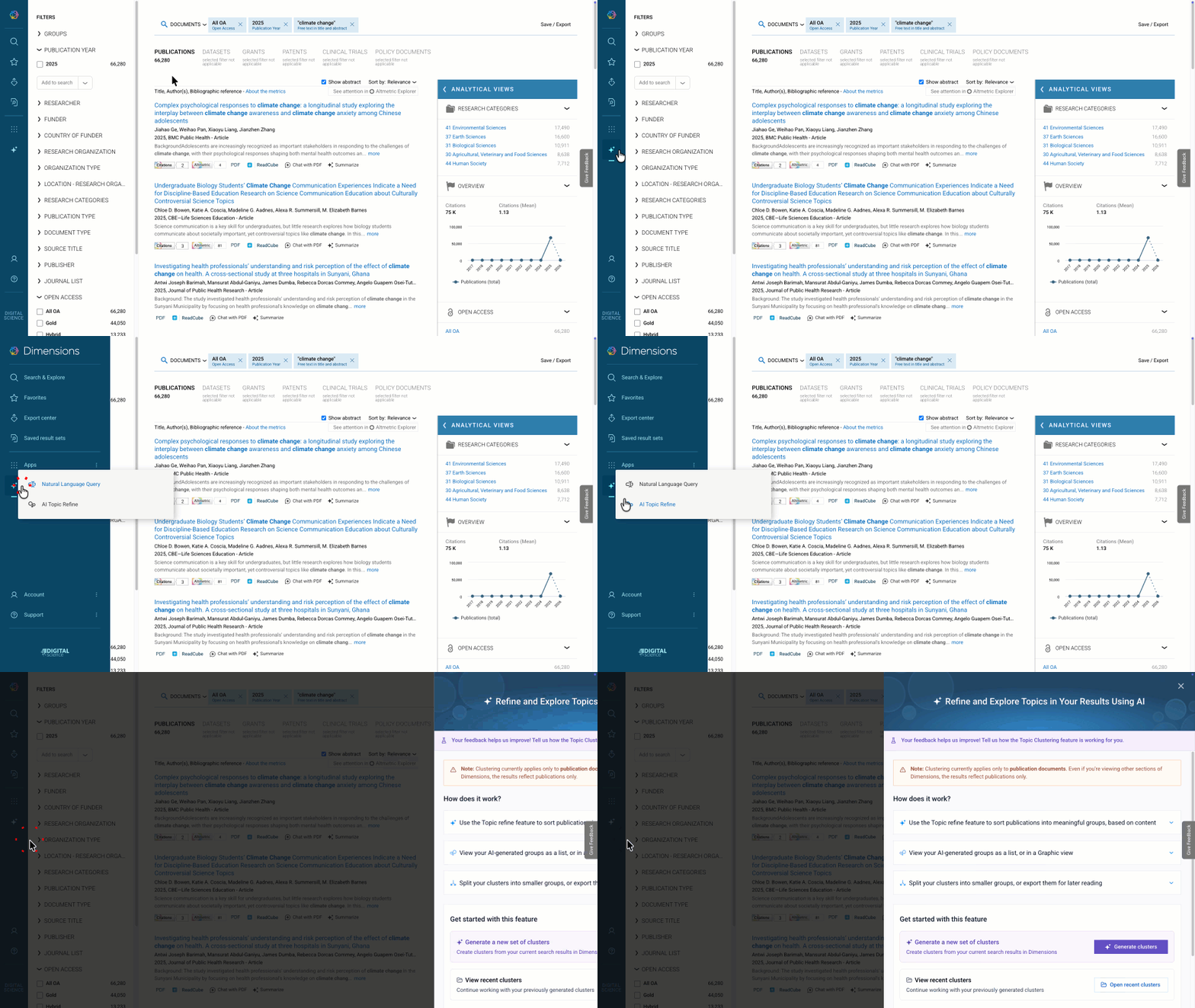
Click “Generate clusters” to begin your review.
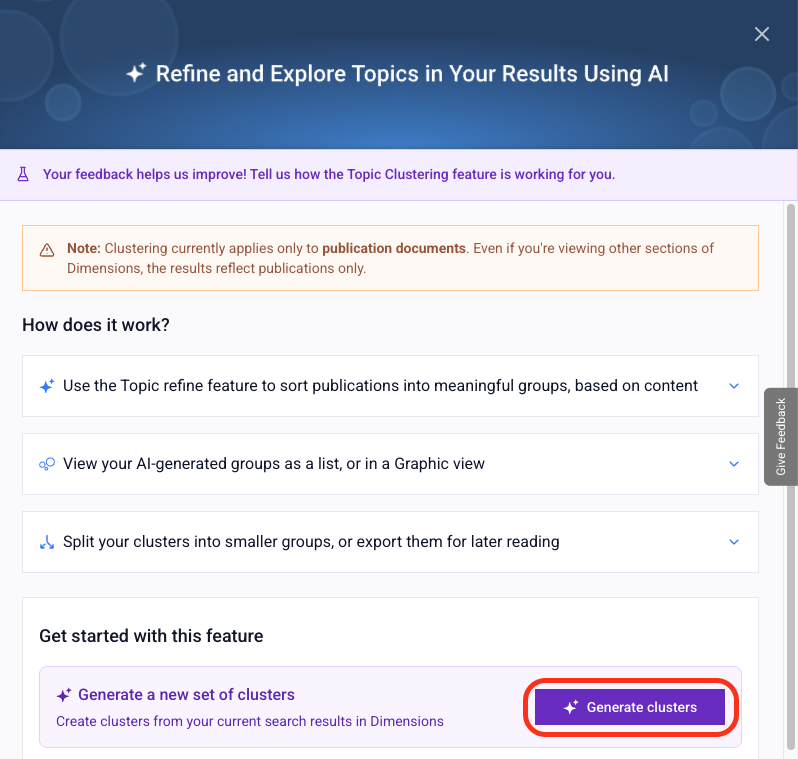
Explore Clusters: Each cluster is displayed with a descriptive label and a short summary of its main theme, along with a selection of key articles.
Drill Down for Detailed Insights: Click on any cluster to drill down further, creating sub-clusters for more granular themes.
After identifying relevant clusters, open selected publications back in Dimensions to continue your workflow where you have full access to all filtering, export, and landscape & discovery tools. In Dimensions you can refine your dataset further, generate visualisations, or conduct deeper analyses using existing Dimensions' discovery features
Tips for Effective Use
Start Broad, Then Narrow: Use a larger initial result set and refine by exploring sub-clusters.
Leverage Summaries: Review AI-generated labels and summaries to quickly assess the relevance of clusters.
Iterate Your Search: If the clusters don’t meet your needs, try adjusting your original query and re-run Smart Clustering.
Summarize with AI
Dimensions AI Summarization is designed to accelerate your research discovery by using artificial intelligence to provide concise summaries of research documents. It allows you to quickly assess the relevance of a publication, grant, patent, or clinical trial without needing to read the full text immediately.
What is included in an AI Summary?
When you generate a summary, the AI analyzes the title and abstract to produce three key insights:
TLDR (Too Long; Didn't Read): A short, plain-language paragraph summarizing the core findings or purpose of the document.
Key Highlights: A bulleted list of the most critical points and takeaways.
Top Keywords: A list of the most relevant scientific terms and concepts extracted from the text.
How to Summarize a Single Document
You can generate a summary for individual records, including Publications, Grants, Patents, and Clinical Trials.
Conduct a search.
Use the "Summarize" button to generate your summary. This button will be visible on the search results page.
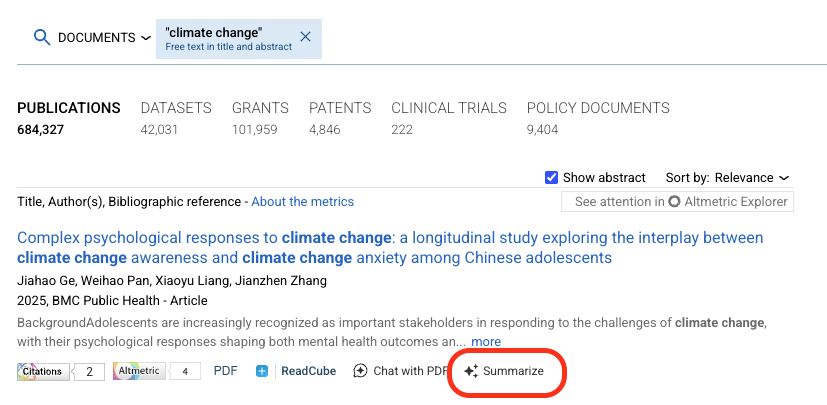
When viewing a full record, the summary will be automatically displayed:
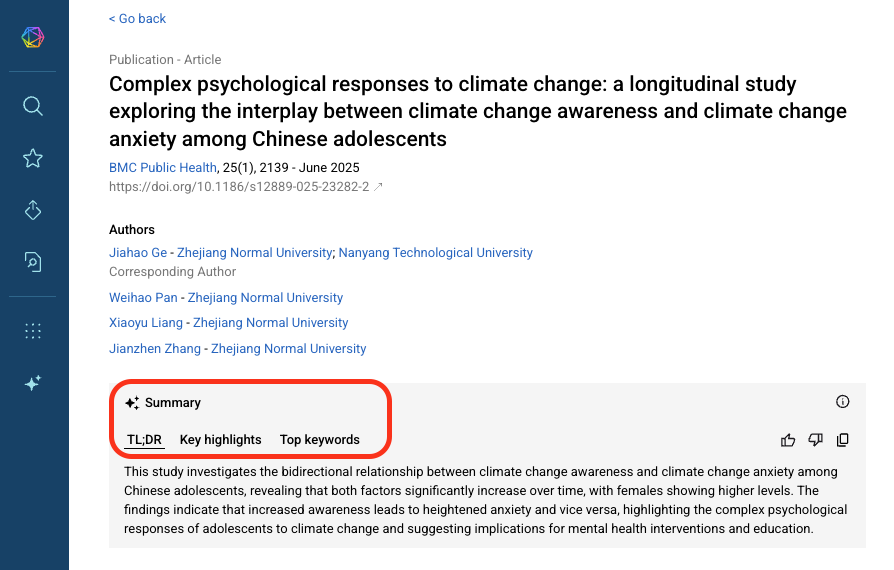
The system will display the TLDR, highlights, and keywords. You can evaluate the summary, and copy this text to your clipboard.

How to Summarize Multiple Documents
When reviewing Publications, you can synthesize insights across multiple documents to understand common themes in a search result.
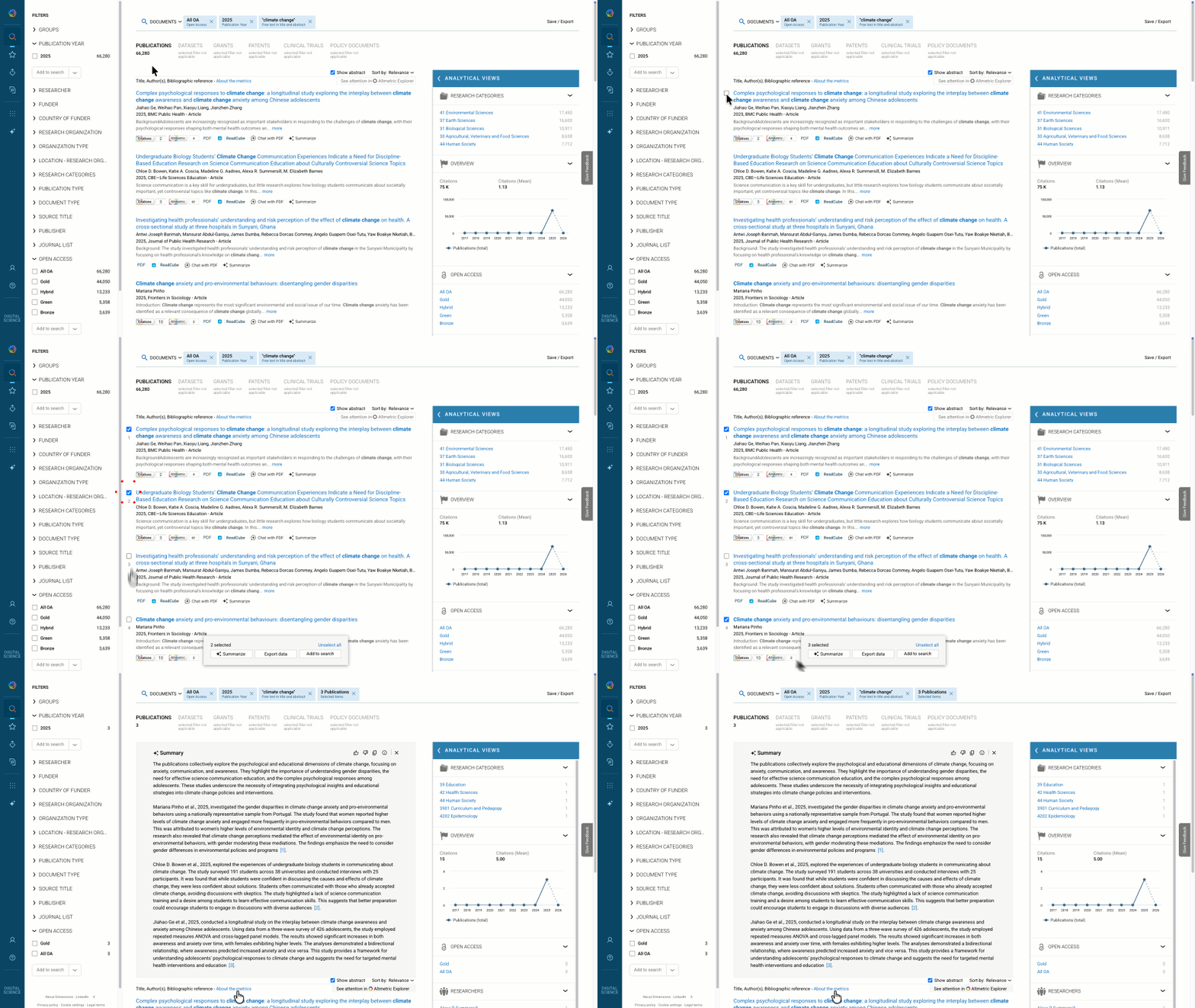
In your search results list, hover over the documents you wish to analyze.
Click the selection box to the left of each document title. You can select up to 10 research outputs at a time.
Click Summarize: Once your items are selected, click the "Summarize" button that appears in the action bar at the bottom of the screen.
View Combined Insight: The AI will generate a summary that looks across the selected documents, helping you understand if a specific group of papers is relevant to your research question.
Best Practices
Relevance Check: Use the summary to quickly decide if a document is worth reading in full. For patents and grants, where technical language can be dense, the TLDR is particularly useful for non-experts.
Discovery: Use the Top Keywords generated by the AI to refine your search queries or identify new concepts you hadn't considered.